Hike eCommerce : Themes
Industry-specific eCommerce themes pre-added to your platform can be a great way to get a head start on building your online store. These themes are designed for the unique needs and workflows of specific industries, saving you time and effort in setting up your back-end experience.
This article majorly includes below topics:
Benefits of using industry-specific pre-added themes:
1. Faster Setup and Launch:
- Pre-configured layouts and features cater for industry-specific needs, eliminating the need for extensive customization.
- Product data management and order processing are streamlined for your specific industry.
- You can launch your store faster without needing to build everything from scratch.
2. Improved User Experience:
Industry-specific themes understand how customers in your niche shop, leading to a more intuitive and efficient back-end experience.
Features and functionalities are tailored to your industry's common workflows and data requirements.
This can lead to better customer conversion rates and a smoother overall experience.
3. Reduced Development Costs:
Pre-built themes eliminate the need for custom development, saving you time and money.
You can focus your resources on other aspects of your business, like marketing and product development.
This is especially beneficial for small businesses with limited budgets.
4. Increased Efficiency and Productivity:
- Streamlined workflows and industry-specific features can help you manage your store more efficiently.
- You can spend less time on administrative tasks and more time on growing your business.
- Pre-configured reports and dashboards can provide valuable insights into your store's performance.
Here are some examples of popular industry-specific eCommerce themes:
- Fashion: Themes with built-in features for managing product variations, size charts, and inventory management.
- Furniture: Themes with features for showcasing furniture in 3D, managing product dimensions, and handling shipping logistics.
- Food and Beverage: Themes with features for managing food allergies, dietary restrictions, and perishable inventory.
- Electronics: Themes with features for showcasing product specifications, technical details, and warranty information.
- Things to consider when choosing industry-specific themes:
- Industry fit: Ensure the theme is designed for your specific industry and its unique needs.
- Customization options: Check if the theme allows for some customization to match your brand identity.
By carefully considering your needs and choosing the right industry-specific pre-added theme, you can set your e-commerce store up for success.
How to customize your Hike eCommerce store with Themes?
Hike is a powerful, easy-to-use POS software that lets you create and manage your online store. One of the features that Hike offers is the ability to customize your online store theme with different colors, fonts, images, and layouts.
A good theme will create a unique look and feel that reflects your brand's personality. It is good practice to have a solid and consistent theme throughout the site because it will make your store look more professional and help you decide where to place advertising.
In this article, we will show you how to access and use the theme customization tool in Hike.
Theme Library:
Step 1: To access the theme customization tool, you need to log in to your Hike account and go to the Online Store section. You can do this by clicking on the Online Store icon on the left sidebar of your dashboard.
Please note that Hike provides a Default theme when you create the online store. This default theme cannot be deleted from the store.
NOTE: When you make any changes to the themes, you will need to save the changes and then click on REFRESH ECOMMERCE STORE and then PREVIEW YOUR STORE.
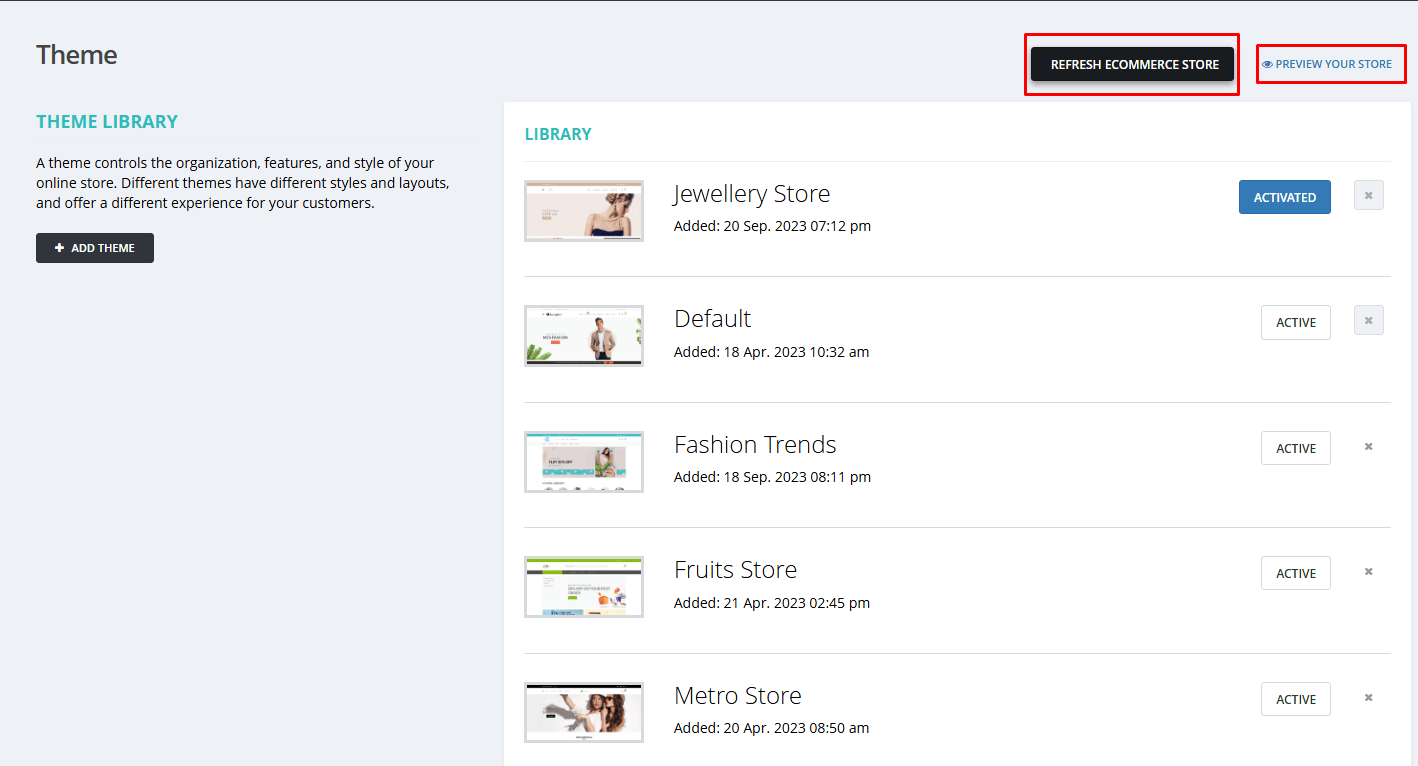
PREVIEW YOUR STORE will give you how your store will actually reflect on the website.
Step 2: Click on the ADD THEME tab and select a theme.
PREVIEW YOUR STORE will give you how your store will actually reflect on the website.
Step 2: Click on the ADD THEME tab and select a theme.
Once you are in the Online Store section, you will see a Themes tab on the top menu. Click on it to see the available themes for your online store. You can choose from a variety of themes that suit different types of businesses and products. To check and preview a theme, click the ‘View’ button for the preview.
Currently, we have listed 54 eCommerce themes from different business backgrounds. Some of the themes available in Hike Ecommerce are:
Currently, we have listed 54 eCommerce themes from different business backgrounds. Some of the themes available in Hike Ecommerce are:
- Sports store
- Fashion Store
- Fashion Trends
- Spring Collection
- Furniture Store
- Pet Store
- Clothing Store
- Bicycle Store
- Wine Store
- Brand Store
- Metro Store
- Vegetables Store
- Jewellery Store
- Food Store
- Fruits Store
- Jewellery Store
- Medical Store
- Perfume Store
- Watch Store
You will be able to check the list of your selected THEME in the Themes page list. From this list, please select the one you wish to use for your online store. Once selected, you will be able to see the SELECTED (Tick) Icon next to the theme.
Now, when you return to your Theme Library page, you can Activate one of the selected Themes for your online store.
This Activated theme will be applied to your online store.
You can check the Live Preview of your online store anytime you wish. (Preview your store)
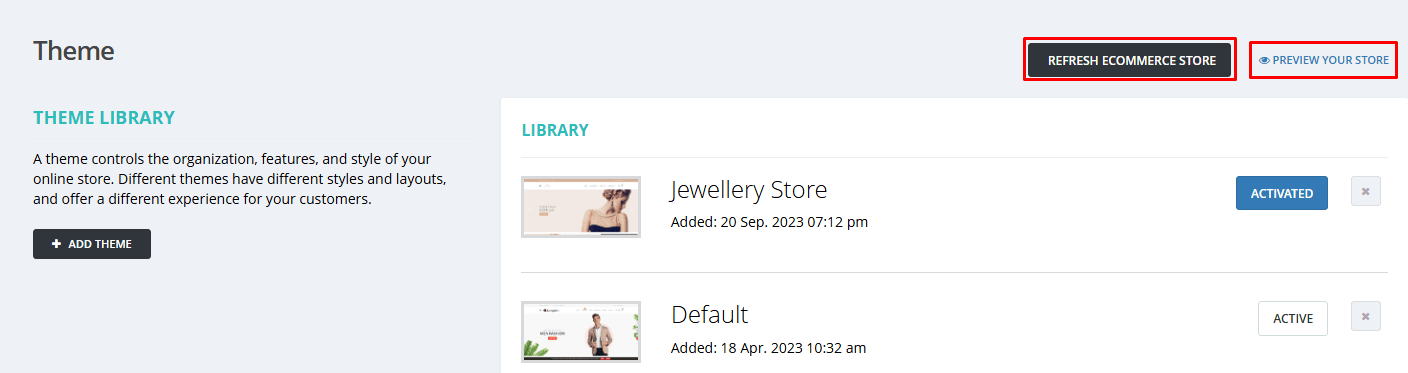
You can check the Live Preview of your online store anytime you wish. (Preview your store)
Customize and edit your theme.
THEME SETTINGS
After you have selected a theme, you will be able to Customize this theme as per your requirements. Click on it to open the theme customization tool. Here, you can edit various aspects of your theme, such as:
Foreground color
Navigation-link color
Header and footer background color
Link color
Title
Subtitle
You can always Reset the changes and return to the default theme settings for each of these sections.
Step 4: Save and publish your changes.
Once you are happy with your theme customization, you can save and publish your changes by clicking on the Save button on the top right corner of the tool. Your online store will be updated with your new theme instantly.
Please note that when you make any changes to a THEME and then change to a second theme, the changes made on the past theme will not be available.
META DESCRIPTION
A meta description is a brief bit of text that is shown in search engine results after the title tag. This will be used for your Search engine optimization: if you are using this option for your online store.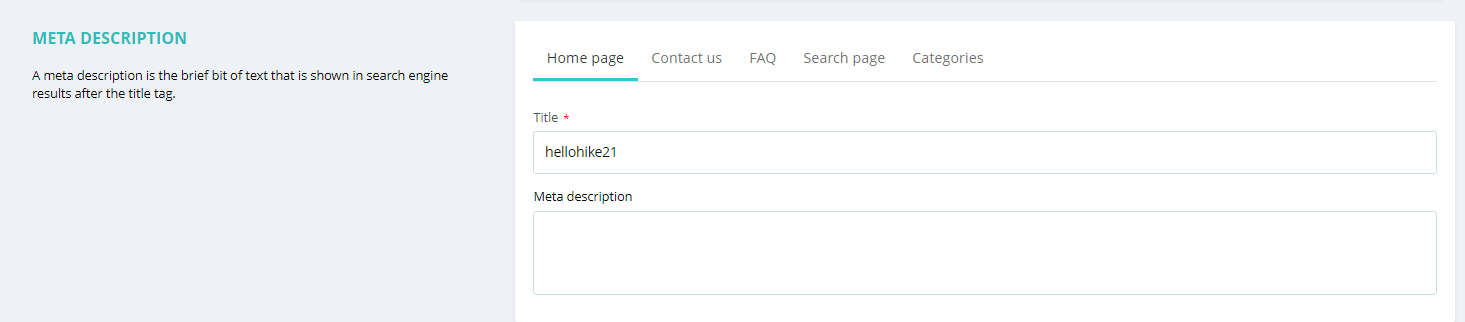
There are only five pages available here for Meta Description.
- Home page
- Contact us
- FAQ
- Search Page
- Categories
If you create any custom pages for your store, you will not find those pages here.
OUTLETS AND REGISTERS
With this option, you will select which outlet will fulfill the stock for your Online sales and on which register your online sales will get recorded.
Please note that you can only select One outlet and one register for the inventory and sale sync.
Moreover, the selected register for Online sales will be available on the Outlet and Register section.
Store set-up > Outlet and Registers.

Store set-up > Outlet and Registers.
ORDERS FOR THIS OUTLET
With this option, you can select the First sale number, Prefix, and Suffix for your Online store sale. This will help differentiate your online sales from the store sales.
ADDRESS & GOOGLE MAP LOCATION
Here, you can add the Google location of your physical store. It will be displayed on your online store.
For Google Map location, you can copy the link from the Google maps and copy it here, and the map will be available on your website.
We will show you how to copy and add the Google maps link and use it here.
1. Open the location of your store in Google maps.
2. Click on the Share button
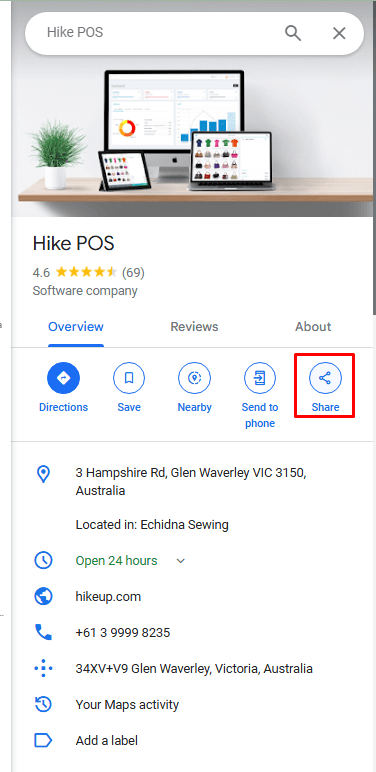
3. A new window will open, Click on Embed a map section.
4. Copy HTML from the page.
5. Now paste this HTML into a Note pad or Word file.
6. Remove everything before and after the " (double commas).
Eg: Source we copied:
<iframe src="https://www.google.com/maps/embed?..................." width="600" height="450" style="border:0;" allowfullscreen="" loading="lazy" referrerpolicy="no-referrer-when-downgrade"></iframe>
Source we have to paste:
7. Now copy the rest of the details and paste them under the Google map location here.
Now Save the changes, Refresh your Ecommerce store, and then click on Preview your Store to check the location map on your Website in the Contact us page.
DOMAIN
A domain is the URL or web address where your customers go to find your store online. By default, your online store was given a hyke.io
If you have your personal domain, you can use it here.

How to Connect a Custom Domain to Your Hike eCommerce Store
Connecting a custom domain (e.g., www.yourbrand.com) to your Hike eCommerce store allows you to sell under your own brand name instead of a Hike subdomain. This guide walks you through the process step by step.
Before You Begin please make sure you have:
An active Hike eCommerce account
A custom domain purchased from a provider (e.g., GoDaddy, Crazy Domains, Namecheap, Cloudflare)
Login access to your domain provider's DNS management panel
Your Hike store's default domain (e.g., yourstore.hikeup.com)
Step 1: Log into Your Domain Provider:
Log in to the website where you purchased your domain (e.g., GoDaddy, Crazy Domains, Cloudflare, etc.)
Navigate to DNS Management, DNS Settings, or Zone Editor (the exact name varies by provider)
Step 2: Add the Required DNS Records:
You need to add three types of DNS records to point your domain to Hike. Follow the table below carefully.
Record 1: CNAME Record (Points your www domain)

Note: If your domain provider shows a "Current Value" field, it may be empty or contain an old value. Replace it with shop.live.hikeup.com.
Record 2: TXT Record (Custom hostname verification)

Important: This is just an example, please replace above domain name with your actual domain name.
Record 3: TXT Records (SSL certificate verification – ACME challenge)
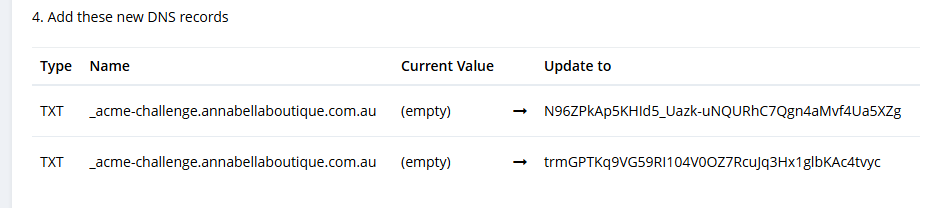
Important: Replace the above domain name with your actual domain name for both records.
Step 3: Save All Changes
Click Save, Add Records, or Submit depending on your provider
Note that DNS changes can take 5–30 minutes to propagate, and sometimes up to 48 hours in rare cases
Step 4: Verify the Domain in Hike
Go back to your Hike eCommerce dashboard
Navigate to Settings → Domains or Custom Domain
Click Verify Domain or Check Status
You should see the status change from PENDING to ACTIVE or CONNECTED
PENDING: DNS records added but not yet detected. Wait a few minutes and refresh.
ACTIVE / CONNECTED: Your custom domain is successfully connected.
FAILED: One or more DNS records are incorrect. Double-check and try again.
How to Connect a Custom Domain to Your Hike eCommerce Store
Connecting a custom domain (e.g., www.yourbrand.com) to your Hike eCommerce store allows you to sell under your own brand name instead of a Hike subdomain. This guide walks you through the process step by step.
Before You Begin please make sure you have:
An active Hike eCommerce account
A custom domain purchased from a provider (e.g., GoDaddy, Crazy Domains, Namecheap, Cloudflare)
Login access to your domain provider's DNS management panel
Your Hike store's default domain (e.g., yourstore.hikeup.com)
Step 1: Log into Your Domain Provider:
Log in to the website where you purchased your domain (e.g., GoDaddy, Crazy Domains, Cloudflare, etc.)
Navigate to DNS Management, DNS Settings, or Zone Editor (the exact name varies by provider)
Step 2: Add the Required DNS Records:
You need to add three types of DNS records to point your domain to Hike. Follow the table below carefully.
Record 1: CNAME Record (Points your www domain)
Note: If your domain provider shows a "Current Value" field, it may be empty or contain an old value. Replace it with shop.live.hikeup.com.
Record 2: TXT Record (Custom hostname verification)
Important: This is just an example, please replace above domain name with your actual domain name.
Record 3: TXT Records (SSL certificate verification – ACME challenge)
Important: Replace the above domain name with your actual domain name for both records.
Step 3: Save All Changes
Click Save, Add Records, or Submit depending on your provider
Note that DNS changes can take 5–30 minutes to propagate, and sometimes up to 48 hours in rare cases
Step 4: Verify the Domain in Hike
Go back to your Hike eCommerce dashboard
Navigate to Settings → Domains or Custom Domain
Click Verify Domain or Check Status
You should see the status change from PENDING to ACTIVE or CONNECTED
PENDING: DNS records added but not yet detected. Wait a few minutes and refresh.
ACTIVE / CONNECTED: Your custom domain is successfully connected.
FAILED: One or more DNS records are incorrect. Double-check and try again.
That's it! You have successfully customized your online store theme with Hike. You can always return to the theme customization tool and make further changes if you want. You can switch to a different theme anytime by returning to the Themes tab and selecting another theme.