Hike eCommerce : Preferences
A well-designed preference section on your e-commerce website can significantly improve user experience and efficiency for your team. It allows users to personalize their workspace, adjust settings to their liking, and optimize workflow. Here are some key elements to consider:
Banner Images
A web banner image is a form of online advertising that displays an image on a webpage. The purpose of a web banner is to attract traffic to the website and to promote the products, services, or brand.
Web banners can have different sizes, shapes, formats, and designs, depending on the goals and preferences of the publisher. Some common types of web banners are static, animated, interactive, or rich media banners. Marketers can target specific audiences with web banners based on their demographics, interests, behaviours, or locations.
Hike only allows static banners at the moment.
Hike only allows static banners at the moment.
Let's check how to use Banner images in Hike eCommerce.
Click on the Add Banner option on this page to add a banner image to your webpage.
Click on the Add Banner option on this page to add a banner image to your webpage.
On the next page, you can update the Image, Header, sub header, Button label and Display order and the link for the banner.
Once you save the changes, this image will display on the top of your Theme as per below screenshot.
You can have multiple banners in a single theme, and they will display on the webpage one-by-one.
This images will auto slide & there is a button provided to slide the image manually.
Fixed Banner Images
Fixed banner can be used to display important information about the website. This includes and is not limited to discount offers, new arrivals, trends, seasons.
Fix banner can be only one per store. This will work as the background image for your entire webpage.
On the next page, you can update the Image, Header, sub header, Button label, and Display order and the link for the banner.
MultiColumns
Hike offers three flexible multi-column section options to enhance homepage:
It will provide you with the option to add an image, Header, Label, Button link, and label.
1. 1st Level Multicolumn:
- Layout: A single column with a prominent image.
- Ideal for: Highlighting a single key visual or emphasizing a specific point.
2. 2nd Level Multicolumn:
- Layout: Two columns, each displaying a single image.
- Ideal for: Showcasing different categories like Men’s wear & Ladies wear.
3. 3rd Level Multicolumn:
- Layout: Three or more columns but not less than three, each displaying multiple images.
- Note: you can add more columns in 3rd level multi-column but cannot delete the existing three.
- Ideal for: Creating a visually engaging gallery, showcasing a product range, or presenting different offers going on your website.
How to add multi-column to your website?
Scroll down to the Multi column section under Preferences.
Now you will be able to check there are three multi-column provided.
Step 1: Click on the multi-column you wish to add, it will open a popup.
Step 2: Click on any of the sub columns you wish to edit.
Step 3: You can edit the different fields as stated above for you multi-column Name, Link Label, You can provide a link to a specific page, Display order, description, Add image.
Step 4: Click on Save in all the popups one by one.
Now Click on Save for the last time in the preference tab, then refresh your ecommerce from the theme section, and lastly preview your store.
Announcement bar
You can add an announcement bar to your online store to display important information about your business.
This will be displayed on the top of the webpage in most of the themes. Please check below for a screenshot of where it will display on the webpage.
Footers
Footer is located at the bottom of your store website and displayed on all pages of your website. This part contains quick links and overall links to other parts of your website, which helps customers find the missing information when visiting the online stores easily
There are four sections in the Footer section within Hike.
You can name them based on your requirement.
Let us check the section within each footer selection we provide.
Title: This will be available on the page as a title for this footer section.
Footer Type: There are two types to select here.
- Content: With this selection, the content will display on the footer. The example for the content is below.
- Menu: The menu will be selected as a list of the details available in the list view.
The menu will display a list of menus you created in the navigation section.
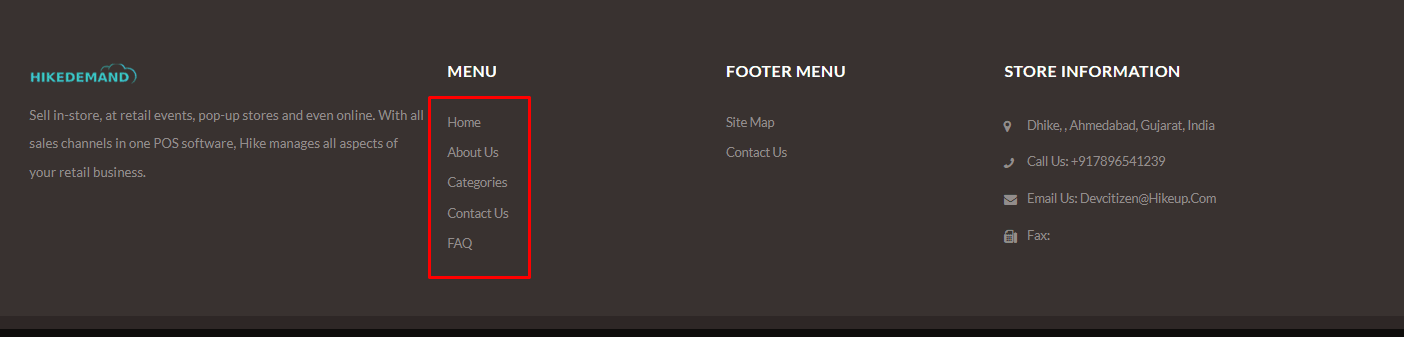
Sequence: This is the number where this section will be displayed on the Footer section. Number 1, 2, 3 or 4.
Active: With this option, you can select if this footer section is active or not on the webpage.
Sequence: This is the number where this section will be displayed on the Footer section. Number 1, 2, 3 or 4.
Active: With this option, you can select if this footer section is active or not on the webpage.
Newsletter subscription
Adding a newsletter signup to your online store lets you collect customer email addresses that you can use for email marketing campaigns.
You can add the details here based on requirement for the Title and Description.
It would appear on your website as shown below. Your customers can add their email id and click on subscribe button.
Note: For now, you can contact the Hike team to get the detailed list of the Customer emails who subscribed to the newsletter. We will provide an option to download the report in future updates.
Google analytics
Google Analytics enables you to track the visitors to your store and generate reports that will help you with your marketing.
Please visit below link to read steps to get Google Analytics Account code:
If you got an error while testing the connection, don't worry it happens sometimes, it will start to collect data in 30 minutes to 48 hours.
Customer privacy
Customer privacy is a critical issue in today's world, and with this section, customers can control their own data. Some locations require customers to give permission before they can use their data. These areas include: EU, EEA, UK and Switzerland:
Under the ePrivacy Directive, customers must give consent as defined by the General Data Protection Regulation (GDPR) before cookies may be used.
There are three options here for the customer to choose.
There are three options here for the customer to choose.
1. Collected after consent:
Data is only collected after a customer gives consent. This approach may be required by data protection and privacy laws. It could impact analytics and advertisement campaigns.
2. Partially collected before consent:
Analytics data is collected for the duration of a user session. Marketing data collection is blocked until consent is given.
3. Collected before consent:
Data is collected before a customer gives consent. This approach may not comply with data protection and privacy laws. It does not impact analytics and advertisement campaigns.
Spam protection
This section provides you with a store with Spam protection, where you can enable Captcha for the customer when creating the customer profile.
This will protect your store from spam and abuse by enabling Google reCAPTCHA. If selected, it will require customers to complete a reCAPTCHA task.
Shipping info
A note to display on every product detail page on your website. ex. fastest and secure delivery, Free shipping for orders above $500 USD, or any details you wish to display on the product details page.

Cash on delivery (COD)
This section will allow you to select Cash On Delivery at the end of the cart on the payment page.

This means the customer can pay cash at the time of delivery. Please note that this option will be only available on selected regions.