How set-up HikePay Tap to Pay on Hike all-in-one device
Hike Pay is Hike
POS's fully integrated payment processing solution. With Hike Pay, you can
seamlessly accept a wide range of payment methods directly within your Hike
POS, including credit/debit cards and contactless payments like Tyro Tap to Pay and Apple Pay. It
provides a unified system for managing transactions, reporting, and deposits,
all designed to simplify your operations and speed up the checkout process for
your customers.
In this article, we will share a step-by-step guide on how to set up Hike Pay within your Hike store.
Prerequisites:
1. You must have an active Hike POS store (abc.hikeup.com)
2. Have your business and personal identification documents ready.
Step-by-Step Setup Guide
Step 1: Access the Payment Types Section.
Please navigate to Store set-up >> Payment Type page within your Hike account.
Please navigate to Store set-up >> Payment Type page within your Hike account.
You will see the option to 'Set up Hikepay to process card payments'
Click on GET STARTED.
A new page will open here where you will need to enter your information.
Step 2. Provide the requested details.
There are Four options here based on your business type. Please select the relevant option here and carefully enter the requested details.
1. Organizations.
This is for a Private corporation, a single-member Limited Liability Company (LLC), a multi-member LLC, and other types of registered businesses.
You will need to enter the Legal business name, Industry type, email address, phone number and website.
All these details here are mandatory. If you do not have a website, you can add a social media page or other relevant links.
2. Individual
This is for One person business or sole Proprietorship businesses.
On this page, you need to enter your First name, Last name, email address, phone number and website.
If you do not have a website, you can add a social media page or other relevant links.
The same process is required for other business types:
3. Sole Partnership and
4. Trust
Once you add all the details, on the next page, you will need to add your business address.
Please make sure you add your address and other personal/company details correctly so the approval process is smooth.
Double-check all the information you have entered for accuracy.
Click on Continue.
On the next page, you will need to select the location/Store details where you will be using the HikePay and the currency preference.
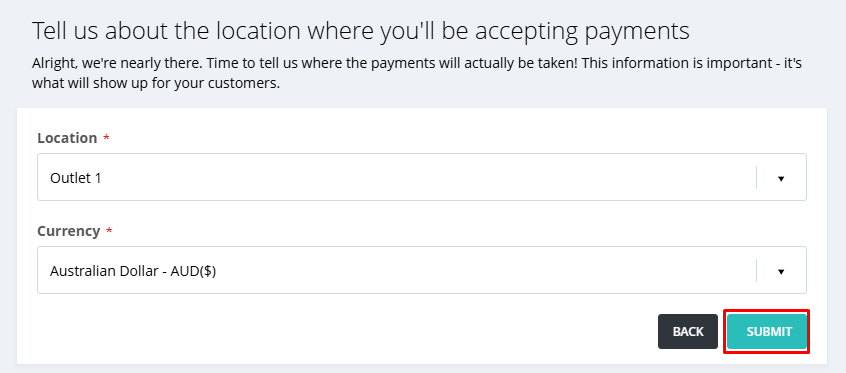
Click on Continue.
On the next page, you will need to select the location/Store details where you will be using the HikePay and the currency preference.
Submit your application.
Once you click on Submit, you will see the following screen/Confirmation indicator on Payment Type.
The account manager will contact you to get the documents for your business for the KYC (Know Your Customer) process.
Once the documents are shared, it will take 2-5 business days to approve.
Once the details are approved, you will be ready to use HikePay within your store.
For the approved store, the payment page will indicate that the HikePay is now active for the store.
Once the details are approved, you will be ready to use HikePay within your store.
For the approved store, the payment page will indicate that the HikePay is now active for the store.
Click on Begin Set-up option to start the set-up process.
A new window will open, giving you two options.
1. External Payment device
2. Tap to Pay
In this article, we will discuss how to use the Tap to Pay option on the Hike all-in-one device.
For external payment device AMS1 setup, please check this article.
2. Tap to Pay
If you select the Tap to Pay option on the page,
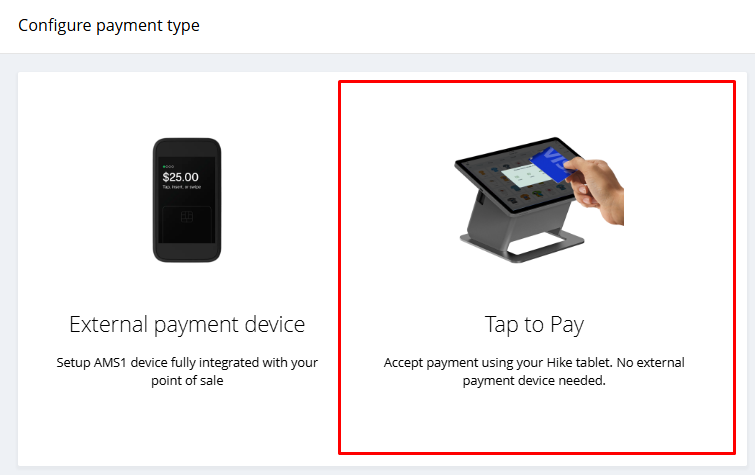
For external payment device AMS1 setup, please check this article.
2. Tap to Pay
If you select the Tap to Pay option on the page,
on the next page, you will be able to add the details for the Tap to Pay option.
Payment Name: Add the name of the payment you wish to display on the POS page.
Display order: Display order of the payment on the POS page.
Surcharge: Any surcharge you wish to add to the payment type? If yes, please select the % from the list provided.
Display surcharge warning pop-up on every sale?: If surcharge is enabled, selecting this option will give you a pop-up for surcharge on each sale.
Allow surcharge to be refunded: IF you wish the surcharge to be refunded, please select this option.
Select Highlight Colour: Please select a specific colour if you wish to display the Hikepay with this colour on the POS page.
On the next page, you will be able to select the Outlet and register for the Hike Pay device.
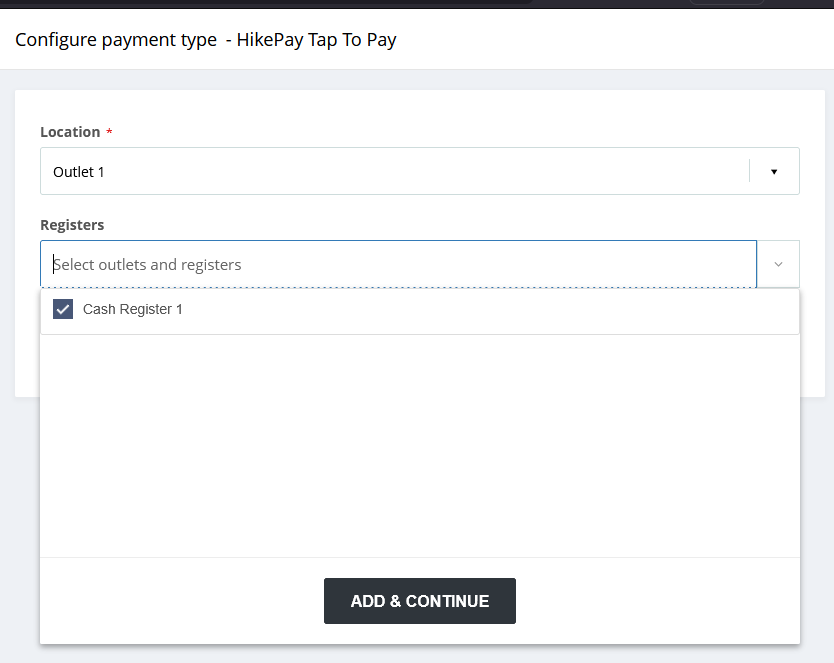
When the you select the data and click on Add & Continue, the configuration is completed and you will be able to see Hike Tap to Pay listed on your Payment list.
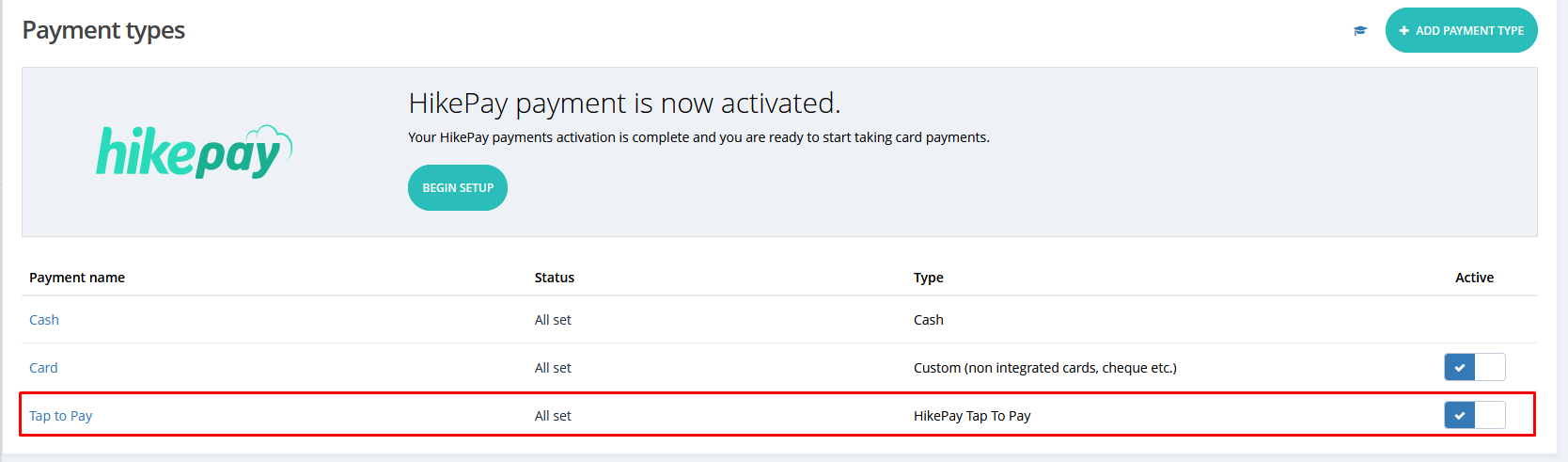
Once you add and activate the feature, you will have the Hike Tap and pay option on your Hike all-in-one device.
If you are using any other NFC-enabled device to access Hike, it will also be available there under the Settings >> Payment Type.
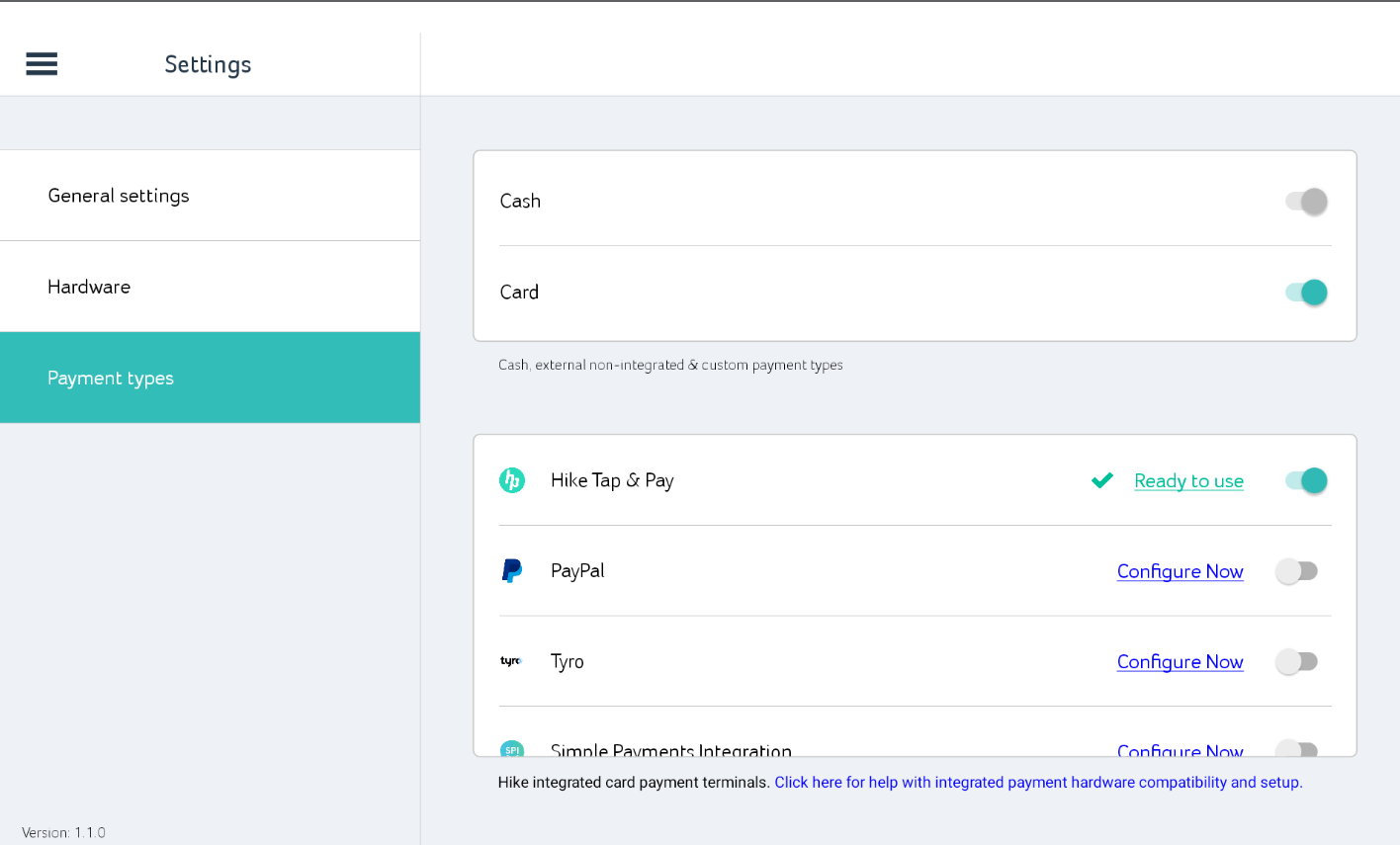
Please make sure the payment type is Ready to use. You can activate and deactivate the payment type using the green toggle.
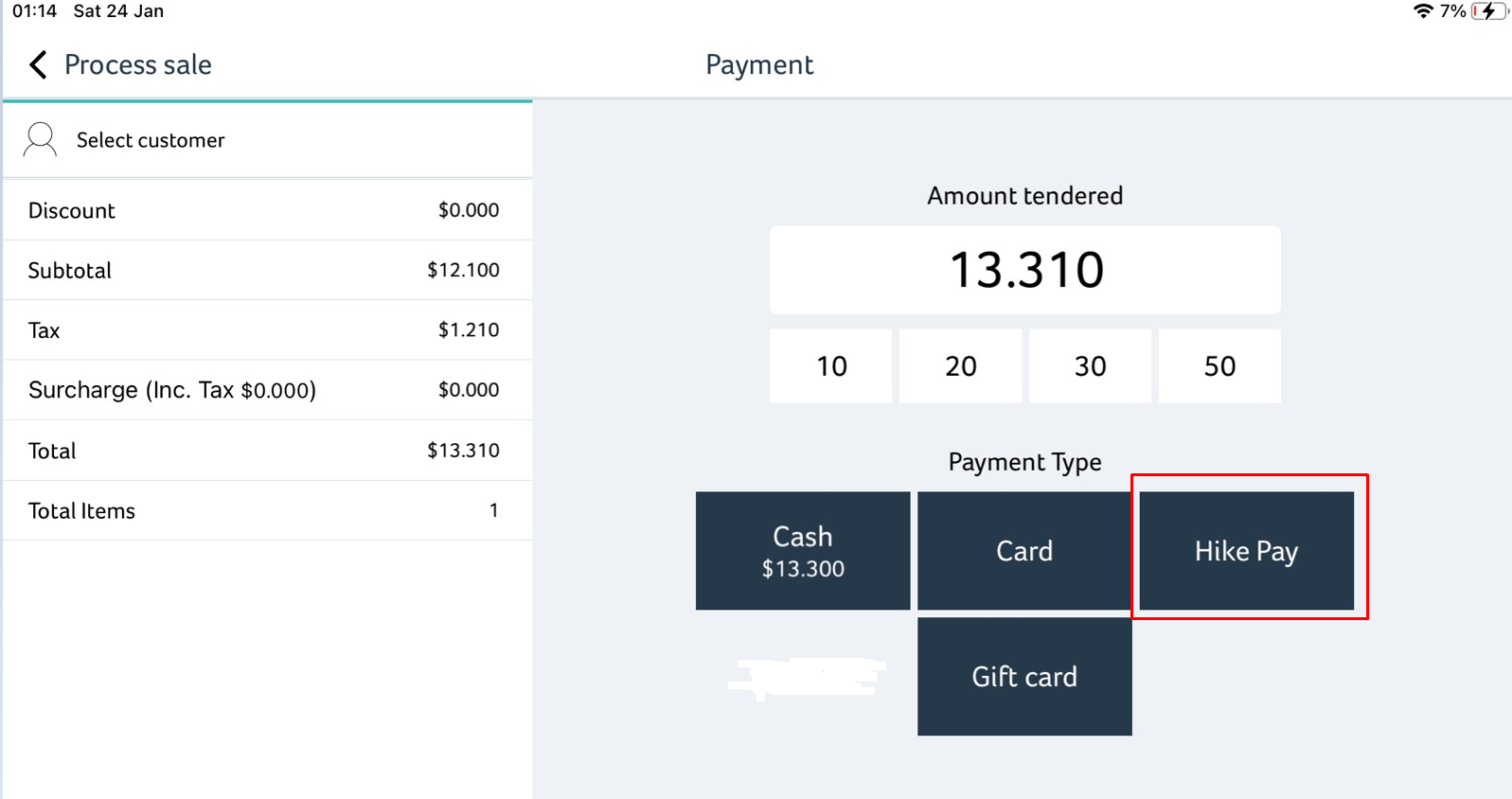
The Hike Tap to Pay option will be available on the POS page at the end of the sale as one of the payment options.
.
You will be prompt to tap your card or the phone device in the next screen to complete the payment.
When the you select the data and click on Add & Continue, the configuration is completed and you will be able to see Hike Tap to Pay listed on your Payment list.
Once you add and activate the feature, you will have the Hike Tap and pay option on your Hike all-in-one device.
If you are using any other NFC-enabled device to access Hike, it will also be available there under the Settings >> Payment Type.
Please make sure the payment type is Ready to use. You can activate and deactivate the payment type using the green toggle.
The Hike Tap to Pay option will be available on the POS page at the end of the sale as one of the payment options.
.
You will be prompt to tap your card or the phone device in the next screen to complete the payment.
We have created short video on how this Tap to pay will work on Hike all-in-one device.
Related Articles
How to set-up Hike Pay with your existing Hike POS store.
Hike Pay is Hike POS's fully integrated payment processing solution. With Hike Pay, you can seamlessly accept a wide range of payment methods directly within your Hike POS, including credit/debit cards and contactless payments like Tyro Tap to Pay ...Hike Payment Reporting and Settings
Hike Payments Reports and Settings This article explains how to access Hike Pay reports and manage Hike Pay settings in Hike POS. These tools help you track payments, reconcile transactions, and control how Hike Pay operates in your store. What is ...Payment integration: Hike Tap to Pay powered by Tyro
Integrating Tyro’s Tap to Pay payment option with your Hike POS system allows you to accept contactless payments seamlessly. Currently, Tyro tap to pay works on iPhone, Android tablets, and Android phones. It will not work on iPad for now. The ...Hike Pay FAQ
In this article What is Hike Pay? Account Management Hardware Processing Transactions Reporting & Deposits Charge-backs PCI Compliance What is Hike Pay? Hike Pay is Hike Point of Sale's fully integrated payment processing solution. With Hike Pay, you ...Hike all in one device/Hike POS device article.
Hike All-in-One POS: A Complete, Wire-Free Solution In this article: Overview & Key Benefits What's Included Technical Specifications Setting Up Your Device Connecting Peripherals Overview & Key Benefits The Hike All-in-One Hardware is a fully ...