Hike Pay AMS1 Terminal : Complete Guide to Setting Up Your Hike Pay smart terminal
This guide is designed to help you set up your new Hike Pay AMS1 payment terminal quickly and confidently. Whether you're unboxing for the first time or reconnecting a device after a break, these step-by-step instructions will walk you through inspection, network setup, and store assignment—so you can start accepting payments with ease. Let's get started.
Applies to: Hike POS merchants using the AMS1 Android terminal.
Purpose: This guide walks you through safely unboxing, setting up, and managing your new AMS1 payment terminal.
Applies to: Hike POS merchants using the AMS1 Android terminal.
Purpose: This guide walks you through safely unboxing, setting up, and managing your new AMS1 payment terminal.
Check Your Package Contents
Ensure your shipment includes:
☑ AMS1 payment terminal
☑ USB-C charging cable and power plug
☑ Integrated eSIM (pre-installed for cellular data)
AMS1 Device configuration:
Device dimensions 122 x 67 x 18 (mm)
Printer Availability No
User interface 4" touch display
Paper roll size Not applicable
Power Supply (PSU) Included
Weight 170g
Battery 2598 mAh (10Wh), replaceable
Processor Quad-core, 1.3 GHz, ARM Cortex-A7 32-bit RISC processor
Memory 16GB flash & 2GB RAM
Operating System Android 10
PCI Validity PCI PTS 6
Point-to-Point Encryption (P2PE) is available starting firmware version 1.117
Inspect for Tampering & Verify Details
Follow these steps to confirm your device is secure and correct:
Check the Shipping Box: Ensure the tamper-evident security tape is intact.
Verify the Serial Number (S/N):
The S/N printed on the shipping box must match the S/N on the device itself.
Step-by-Step: First-Time Setup
1. Power On & Initial Setup
Connect Power: Plug the terminal into a power outlet using the provided USB cable.
Turn On: Press and hold the power button until the screen lights up.
Initial Charge: For best results, allow the battery to charge for at least 4 hours before first use.
Select Language: On the "Welcome" screen, choose your preferred language.
Connect to the Internet: Follow the instructions in the next section.
2. Connect to Your Network
The terminal needs internet to process payments. You have two options:
Accessing Terminal Settings & Payment Menus on your AMS1 Terminal
You can access various settings from the terminal's home screen. Some menus require a pass-code for security.
You can access various settings from the terminal's home screen. Some menus require a pass-code for security.
Where to Get Passcodes: Your Hike POS account manager or support team provides the necessary Admin & Settings and Transactions passcodes.
Powering On After Prolonged Shutdown
If the terminal has been off for a long time, it may need 10-20 minutes to synchronise configurations and update software when first powered back on.
Please be patient and leave it connected to power and the internet.
Please be patient and leave it connected to power and the internet.
Terminal Care & Maintenance
Daily Use: The battery is designed to last a full business day.
Long-Term Storage: If storing the terminal unused for over a month, Store in a cool, dry place away from sunlight.
Keep the battery charge between 40% and 70%.
Check the charge level and look for any swelling every 6 months.
Charging Cable Care
Use Official Parts: Always use the provided USB-C cable and plug.
Handle with Care: Insert/remove the cable straight in, not at an angle. Don't bend or fold the cable excessively.
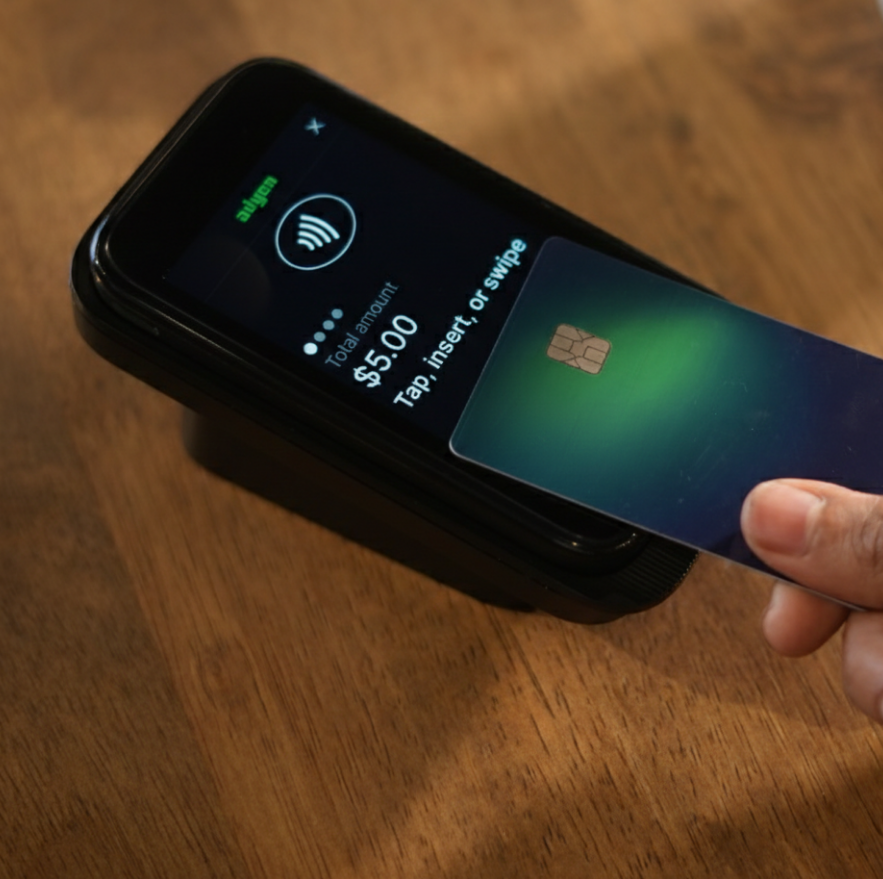
Your AMS1 terminal is now ready to process payments seamlessly with Hike POS. Please check the support article on how to connect the device to Hike POS.
https://help.hikeup.com/portal/en/kb/articles/how-to-set-up-hike-pay-with-your-existing-hike-pos-store
If you encounter any issues during setup or daily use, remember that our support team is just a message away. We're here to ensure your payment experience is always smooth, secure, and reliable.
https://help.hikeup.com/portal/en/kb/articles/how-to-set-up-hike-pay-with-your-existing-hike-pos-store
If you encounter any issues during setup or daily use, remember that our support team is just a message away. We're here to ensure your payment experience is always smooth, secure, and reliable.