Hike QR Pay (Scan & Pay)
Overview
Hike QR Pay is available in supported regions where HikePay is offered.
Before enabling Hike QR Pay, ensure that:
· Your Hike subscription includes the Hike QR Pay add-on.
· HikePay is activated for your store.
If HikePay has not been activated, Hike will prompt you to complete the HikePay signup process before enabling QR Pay.
Process a Sale
1. Create a sale in Hike POS.
2. Add products to the cart.
3. Proceed to the payment screen.
4. Select Hike QR Pay as the payment method.
Generate QR Code:
When Hike QR Pay is selected:
1. A QR Code will appear on the payment screen.
2. A countdown timer is displayed.
3. Customers are prompted to scan the QR code using their mobile device.
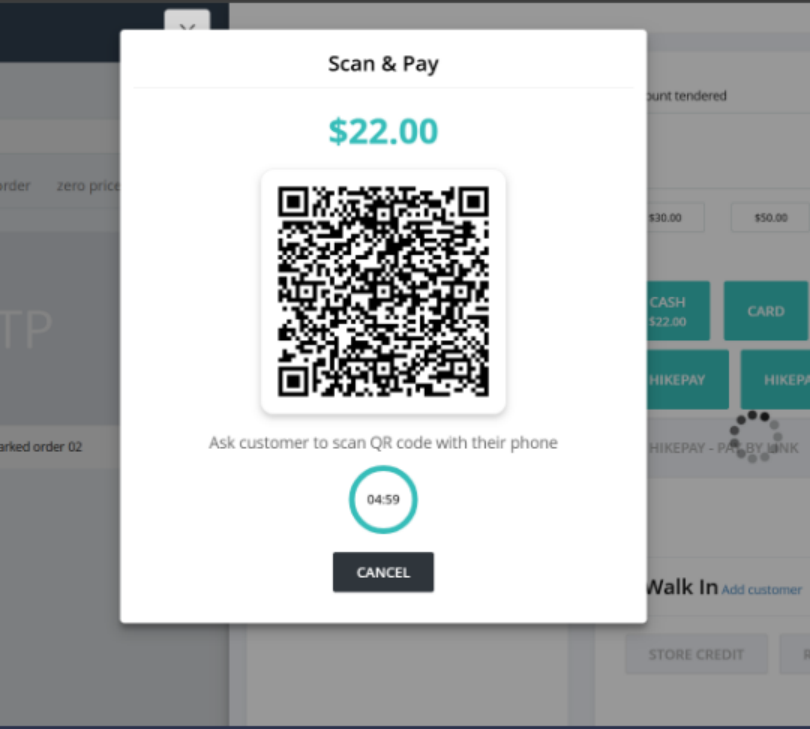
Customer Scans QR Code
The customer:
1. Opens their phone camera.
2. Scans the QR code.
3. A secure payment page opens in their mobile browser.
Customer Completes Payment
Customers can pay using:
· Apple Pay
· Google Pay
· Any other Wallet apps
Supported payment methods depend on the customer's device and payment wallet availability.
Apple Pay
Apple Pay is only displayed on compatible Apple devices where Apple Pay has been configured.
Google Pay
Google Pay is displayed on supported Android devices with Google Pay configured.
Sale Completion
Once payment is successful:
1. Hike receives payment confirmation.
2. The payment status updates automatically.
3. The sale is completed.
4. Inventory is adjusted normally.
5. Payment details appear in reports and transaction history.
Partial Payment with QR Pay
Example:
· Sale Total: $100
· Customer Pays: $50 via QR Pay
· Remaining Balance: $50
Timer Functionality
A payment timer is displayed when the QR code is generated.
The timer:
· Prevents stale payment links.
· Automatically expires inactive QR sessions.
· Cancels unpaid QR transactions after timeout.
When the refund is processed for the sale paid by the QR scanning, the refund amount will be credited to the original bank account/card used for the payment.