Managing Terminal Settings & Features in Hike Pay
This article covers the configuration options available for your payment terminals within the Hike Pay dashboard. These settings allow you to control surcharges, pass-codes, and hardware functionality.
Accessing Terminal Features:
To configure these settings, navigate to Hike Pay > Terminals in your dashboard. From there, you can manage the following features.
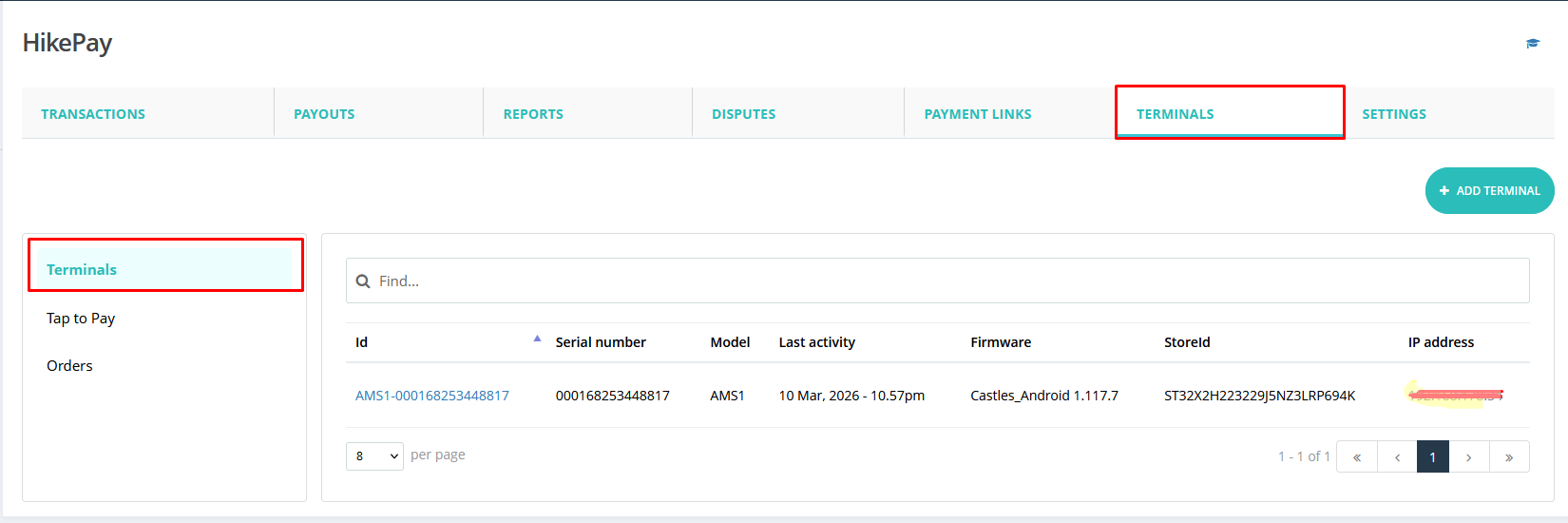
This page will show you the available terminals for your store. If you have multiple AMS1 terminals available in your store, all the terminals will show here.
Please click on the Terminal ID to go ahead and check the settings for the terminal.
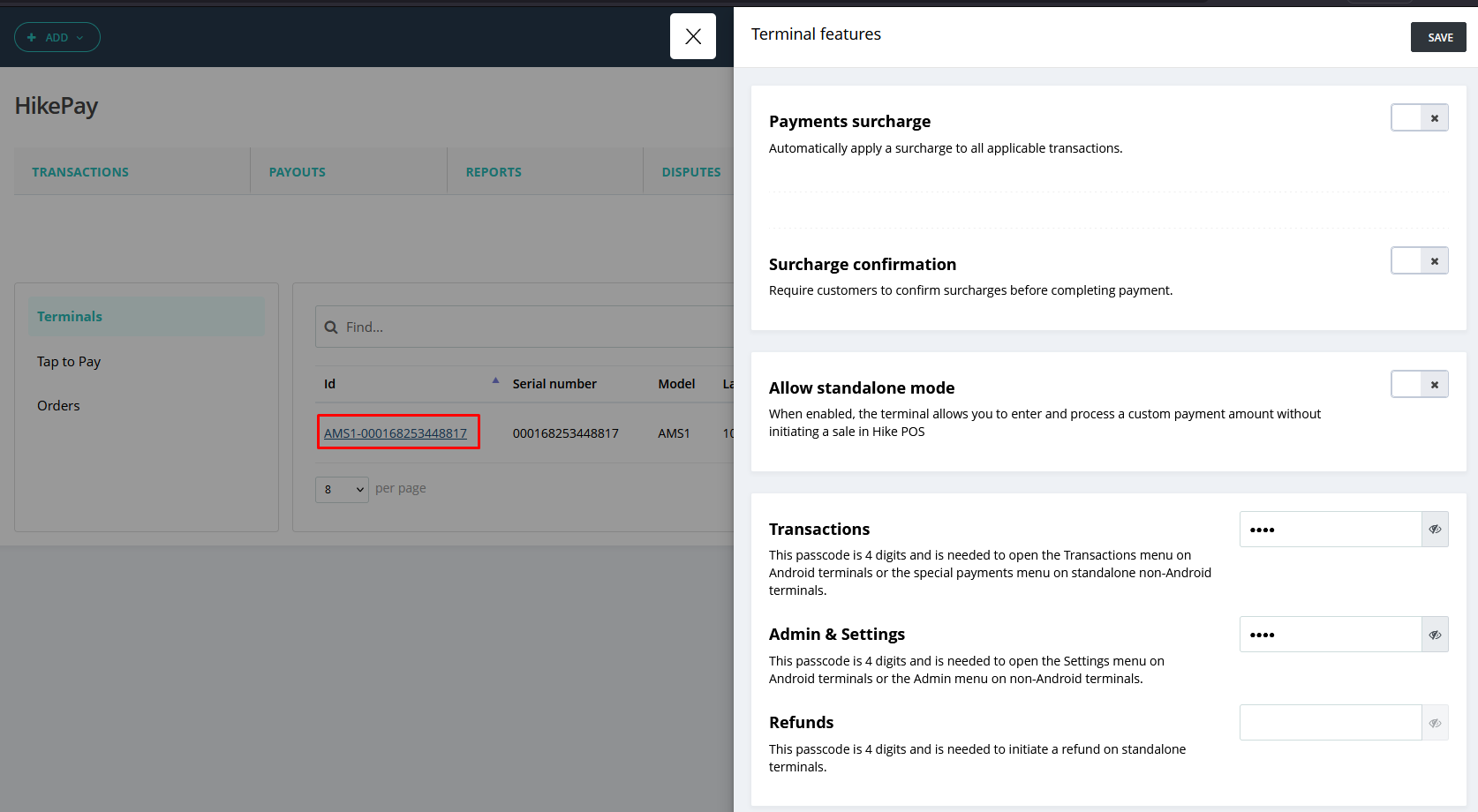
This page will show you the available terminals for your store. If you have multiple AMS1 terminals available in your store, all the terminals will show here.
Please click on the Terminal ID to go ahead and check the settings for the terminal.
You will have the following options on the slider opening.
1. Payments Surcharge:
1. Payments Surcharge:
You can configure your terminals to automatically add a surcharge to cover transaction fees.
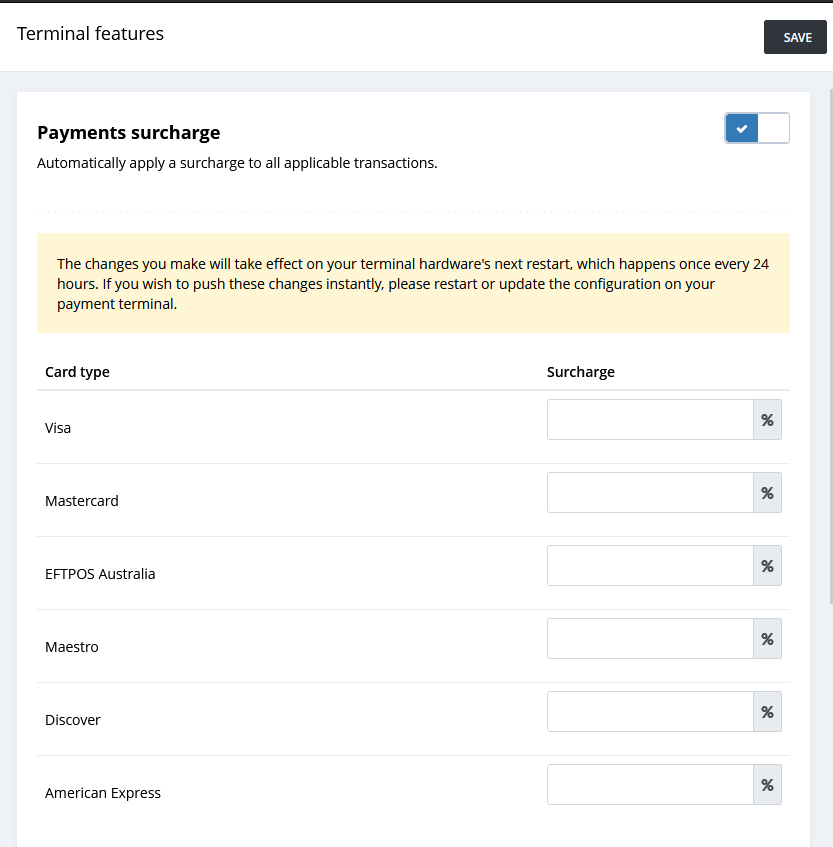
Payments surcharge: Toggle this switch ON to automatically apply a surcharge to all applicable credit card transactions. The surcharge rate is configured in your general payment settings.
When this option is ON, it requires the customer to view and confirm the surcharge amount on the terminal screen before the payment is completed, ensuring transparency.
The changes you make will take effect on your terminal hardware's next restart, which happens once every 24 hours. If you wish to push these changes instantly, please restart or update the configuration on your payment terminal.
The changes you make will take effect on your terminal hardware's next restart, which happens once every 24 hours. If you wish to push these changes instantly, please restart or update the configuration on your payment terminal.
2. Surcharge confirmation:
It is highly recommended to toggle this switch ON. This requires the customer to view and confirm the surcharge amount on the terminal screen before the payment is completed, ensuring transparency.
It is highly recommended to toggle this switch ON. This requires the customer to view and confirm the surcharge amount on the terminal screen before the payment is completed, ensuring transparency.
3. Standalone Mode:
This feature allows the terminal to operate independently of the Hike POS system for specific transactions.

Allow standalone mode: Toggle this switch ON to enable the terminal to enter and process custom payment amounts without initiating a sale in the main Hike POS. This is useful for scenarios like accepting donations, quick bills, or payments at events where you don't need to ring up items.
4 . Terminal Pass-codes:
For security and role-based access, you can set specific 4-digit pass-codes for different functions on the terminal. If left blank, the terminal may not prompt for a pass-code for that action.
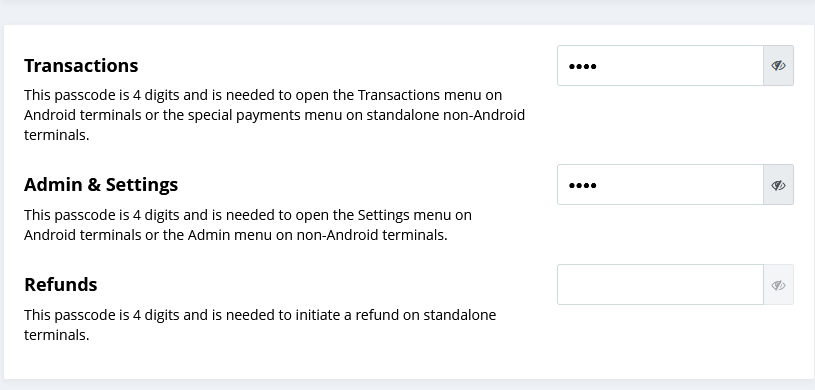
Transactions:
Purpose: This 4-digit code is required to open the Transactions menu on AMS1 terminals or the special Payments menu on standalone terminals.
Setup: Enter a 4-digit numeric code.
Setup: Enter a 4-digit numeric code.
Admin & Settings:
Purpose: This 4-digit code is required to open the Settings menu on AMS1 terminals or the Admin menu on Android terminals.
Setup: Enter a 4-digit numeric code.
Refunds:
Purpose: This 4-digit code is required to initiate a Refund directly on AMS1 terminals.
Setup: Enter a 4-digit numeric code.
Best Practice Tip: Use different codes for different functions (e.g., separate codes for Managers vs. Cashiers) to maintain tight security over refunds and sensitive settings.