Register Report: Fiji customers
For our Fiji customers using Hike integrated with the Fiji VAT Monitoring System, certain sections of your register report have been updated to align with local fiscal requirements. The rest of the register report remains the same as what you're already familiar with in Hike.
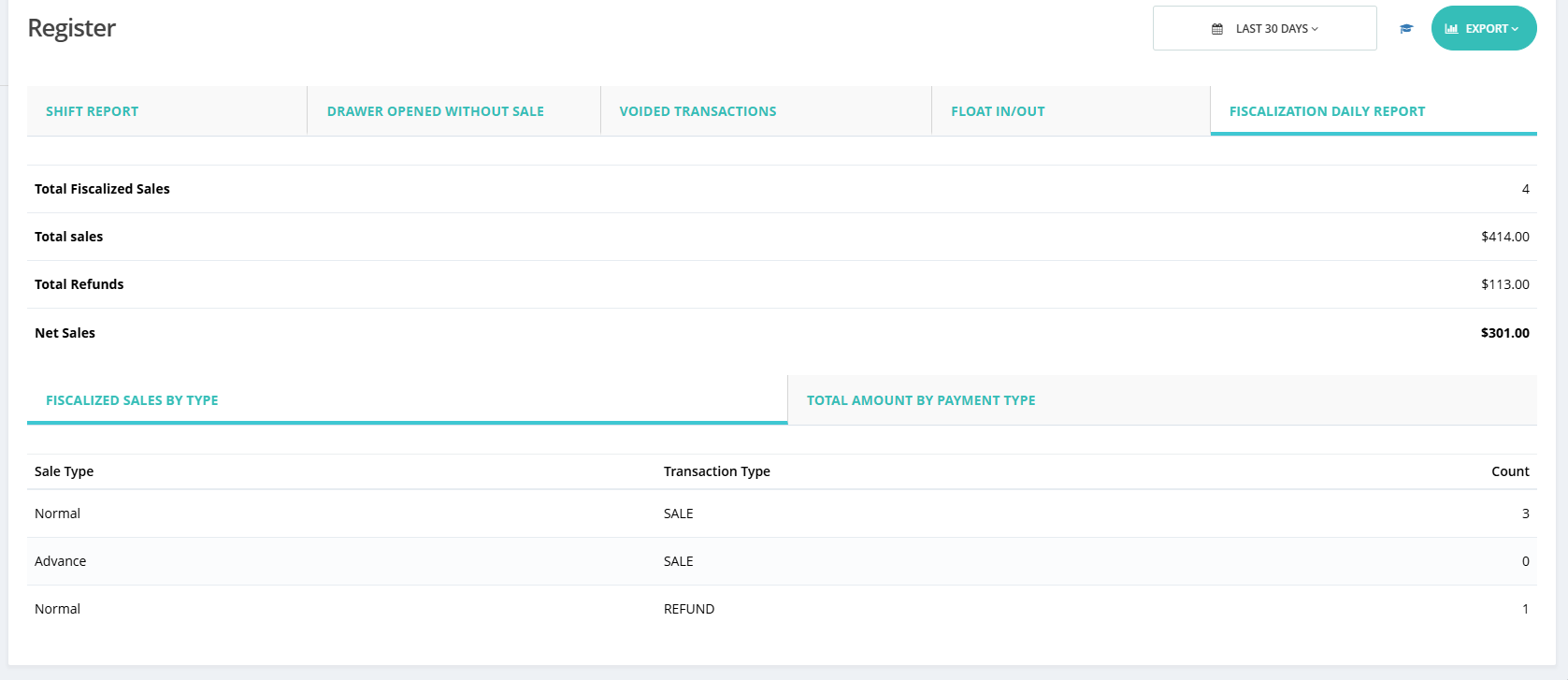
This article focuses specifically on the highlighted fields shown in the screenshot, which are unique to Fiji and relate to fiscalization reporting.
Fiscalization Daily Report:
1. Total Fiscalized Sales
This figure represents the total number of fiscalized transactions processed during the shift. These are sales that have been successfully recorded and reported to the Fiji VAT Monitoring System in accordance with local tax regulations.
In the example shown:
Total Fiscalized Sales = 4
This means 4 transactions were successfully fiscalized during the shift/register.
2. Total Sales
This is the gross total value of all sales transactions made during the shift, before any refunds or deductions. It includes all completed sales regardless of payment type.
In the example:
- Total Sales = $414.00
3. Total Refunds
This shows the total value of refunded transactions processed during the shift. Refunds are also fiscalized to ensure accurate reporting to the VAT Monitoring System.
In the example:
Total Refunds = $113.00
4. Net Sales
This is the final sales value after subtracting refunds from total sales. It represents your actual revenue for the shift.
In the example:
Net Sales = $301.00
(Calculated as $414.00 – $113.00)
5. Fiscalized Sales by Type
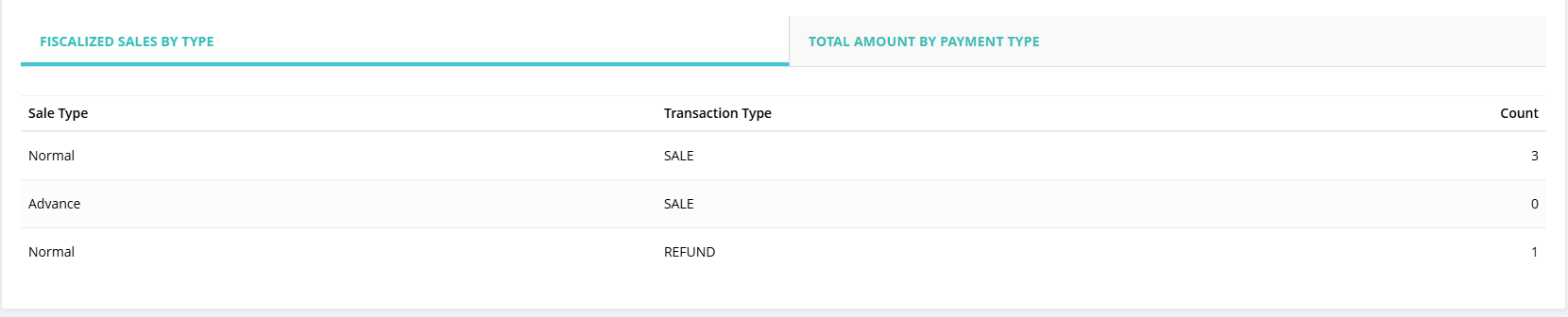
This section provides a breakdown of your fiscalized transactions by **Sale Type** and **Transaction Type**.
What this means:
Sale Type: refers to the nature of the transaction:
- Normal: Standard point‑of‑sale transactions.
- Advance: Pre‑payments or deposits (not yet finalized as a sale). Lay-By sales.
Transaction Type: Type indicates whether the transaction was a:
-SALE: A completed purchase.
-REFUND: A returned transaction.
Count: This refers to the number of sales processed with each type.
These counts match the fiscalized total of 4 transactions shown at the top of the report.
Important Notes:
- Only transactions that are successfully fiscalized appear in the highlighted sections. Any transactions that fail fiscalization will need to be resolved separately.
- The Fiscalized Sales by Type and Total Amount by Payment Type fields are specifically required for Fiji VAT compliance and help you reconcile your daily sales with the government’s fiscal data.
- All other fields on the register report (such as Drawer Activity, Float In/Out, etc.) remain unchanged and function as they do for all other Hike customers.
Please check the support article for the register report to understand other sections.
https://help.hikeup.com/portal/en/kb/articles/register-report
If you have any questions about these figures or need assistance reconciling your fiscalized sales, please reach out to our support team – we're here to help.
This article focuses specifically on the highlighted fields shown in the screenshot, which are unique to Fiji and relate to fiscalization reporting.
Fiscalization Daily Report:
1. Total Fiscalized Sales
This figure represents the total number of fiscalized transactions processed during the shift. These are sales that have been successfully recorded and reported to the Fiji VAT Monitoring System in accordance with local tax regulations.
In the example shown:
Total Fiscalized Sales = 4
This means 4 transactions were successfully fiscalized during the shift/register.
2. Total Sales
This is the gross total value of all sales transactions made during the shift, before any refunds or deductions. It includes all completed sales regardless of payment type.
In the example:
- Total Sales = $414.00
3. Total Refunds
This shows the total value of refunded transactions processed during the shift. Refunds are also fiscalized to ensure accurate reporting to the VAT Monitoring System.
In the example:
Total Refunds = $113.00
4. Net Sales
This is the final sales value after subtracting refunds from total sales. It represents your actual revenue for the shift.
In the example:
Net Sales = $301.00
(Calculated as $414.00 – $113.00)
5. Fiscalized Sales by Type
This section provides a breakdown of your fiscalized transactions by **Sale Type** and **Transaction Type**.
What this means:
Sale Type: refers to the nature of the transaction:
- Normal: Standard point‑of‑sale transactions.
- Advance: Pre‑payments or deposits (not yet finalized as a sale). Lay-By sales.
Transaction Type: Type indicates whether the transaction was a:
-SALE: A completed purchase.
-REFUND: A returned transaction.
Count: This refers to the number of sales processed with each type.
These counts match the fiscalized total of 4 transactions shown at the top of the report.
Important Notes:
- Only transactions that are successfully fiscalized appear in the highlighted sections. Any transactions that fail fiscalization will need to be resolved separately.
- The Fiscalized Sales by Type and Total Amount by Payment Type fields are specifically required for Fiji VAT compliance and help you reconcile your daily sales with the government’s fiscal data.
- All other fields on the register report (such as Drawer Activity, Float In/Out, etc.) remain unchanged and function as they do for all other Hike customers.
Please check the support article for the register report to understand other sections.
https://help.hikeup.com/portal/en/kb/articles/register-report
If you have any questions about these figures or need assistance reconciling your fiscalized sales, please reach out to our support team – we're here to help.