How to integrate Hike eCommerce with OTO
What is OTO?
OTO is the largest integrator for shipping services in the MENA region (Middle East and North Africa). It is a comprehensive shipping management platform that helps businesses automate and optimise their delivery operations.
Key benefits of OTO include:
Access to 400+ carriers – Integrate instantly with local and international shipping carriers from one dashboard.
Automated shipping – Use smart rules for order routing, fulfillment, and customer updates.
Cost savings – Access discounted shipping rates to boost your margins.
Better customer experience – Send branded delivery notifications via email, SMS, and WhatsApp, plus provide real-time tracking.
Website: https://tryoto.com/
Availability in Hike:
The OTO integration is available directly in your Hike eCommerce dashboard under:
Before you begin, make sure you have:
1. An active OTO account (sign up at tryoto.com)
2. Your API Key and Pickup Location Code from OTO (provided after account setup)
2. Your API Key and Pickup Location Code from OTO (provided after account setup)
How to integrate Hike eCommerce and OTO:
Step 1: Activate OTO in Hike
Log in to your Hike eCommerce dashboard
Navigate to Online Store → Shipping → Shipping Carriers
Find OTO in the list of carriers
Click the Activate button next to OTO
A configuration window will appear.
Step 2. Follow below steps to integrate OTO with Hike:
Click on the Activate button next to OTO and you will have the window below open.
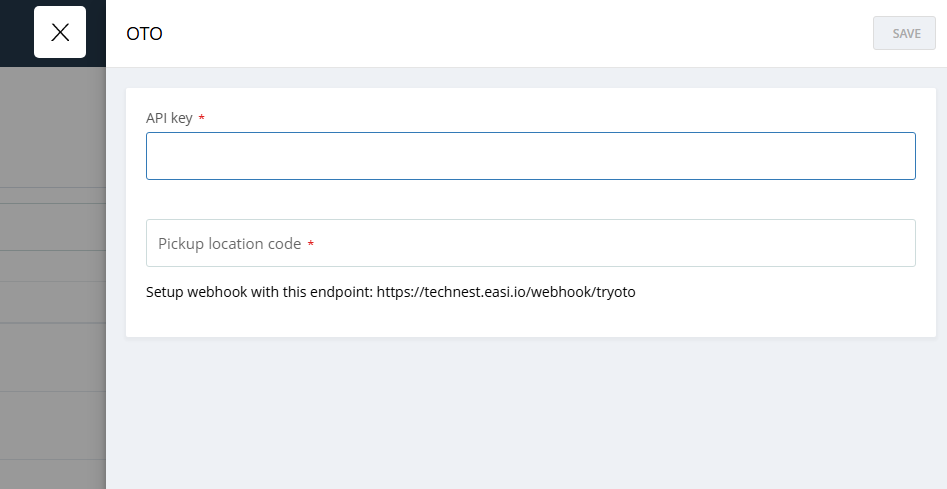
Please add the API key and Pick-up location code here to integrate OTO and Hike. (You would have got these details from OTO.)
-After this, please copy the webhook URL.
-Now, log in to your OTO dashboard
-From the settings tab, open General Settings
-Scroll down to Integration Settings
-Click on the + icon to add a new webhook
- Paste
the copied URL in URL section, Select Method as Post, Paste the Secret
Key and Authorization Key given by OTO, and select Web Hook type as
Order Status.
- Once you enter these details and save them, you will see the integration as activated.
Step 3: Verify Integration
Once you have saved the webhook in OTO:
Go back to your Hike dashboard
Refresh the OTO configuration window or click Verify/Test Connection
You should see a success message confirming that the integration is Active

Step 3: Verify Integration
Once you have saved the webhook in OTO:
Go back to your Hike dashboard
Refresh the OTO configuration window or click Verify/Test Connection
You should see a success message confirming that the integration is Active