AI Workflows and AI credits.
Overview
The AI Workflows feature helps automate routine business tasks using artificial intelligence, saving time and improving operational efficiency. Each workflow consumes AI Credits based on usage, and your available credit balance is displayed at the top of the AI Workflows page.
Accessing AI Workflows within Hike store
1. Log in to your Hike account.
2. Navigate to AI Workflows from the main menu.
3. Review the available AI-powered automation options.
4. Click Activate on the desired workflow to begin setup.
AI Credits:
AI credits will be required to use this feature.
AI credits will be required to use this feature.
AI Credits are consumed each time an AI Workflow performs a task — such as generating social media content, processing chatbot conversations, creating reports, or responding to Telegram assistant queries. Your current balance is always visible at the top of the AI Workflows page.
Purchasing AI Credits
In case you wish to start using the feature and want to purchase the AI credit or if your available AI credits are running low, you can purchase additional credits directly from the Add AI Credit page.
How to Purchase Credits
1. Open AI Workflows from the main menu.
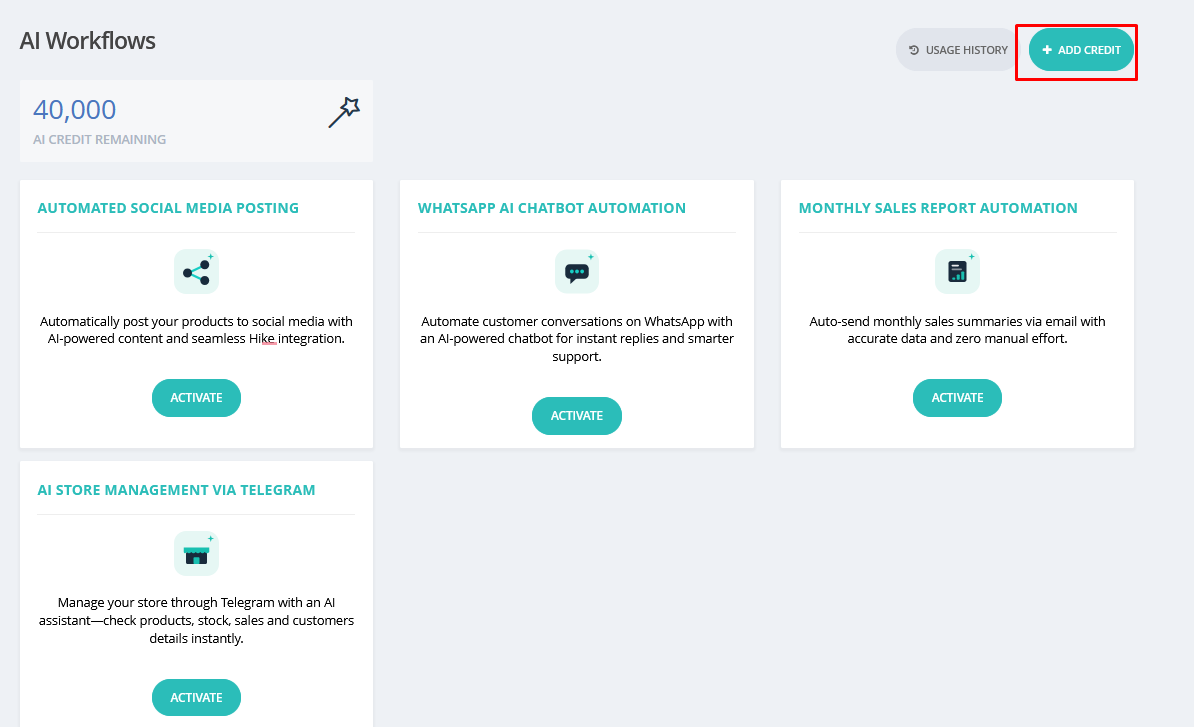
2. Click Add Credit in the top-right corner of the page.
3. Select one of the available credit packages or enter a custom amount.
4. Click Buy Credits to complete the purchase using the card saved on your account.
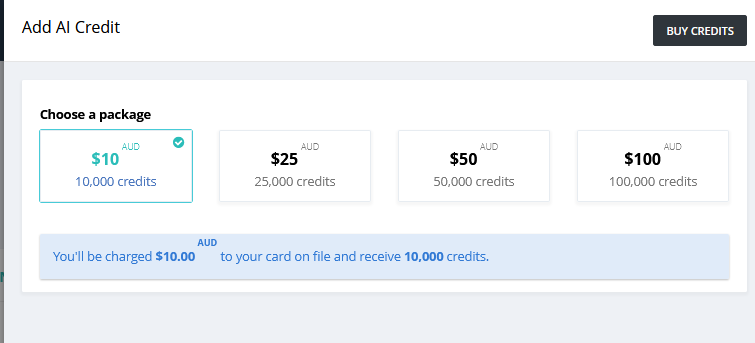
Available Credit Packages
Purchase Confirmation
Before payment is processed, a confirmation message will be displayed showing:
• The amount to be charged.
• The payment method on file.
• The number of AI Credits that will be added to your account.
Notes
• AI Credits are added to your account immediately after successful payment.
• Credits are consumed when AI workflows perform tasks such as generating content, processing chatbot conversations, creating reports, or responding to Telegram assistant requests.
• Ensure a valid payment method is available on your account before purchasing credits.
AI Credit Usage History:
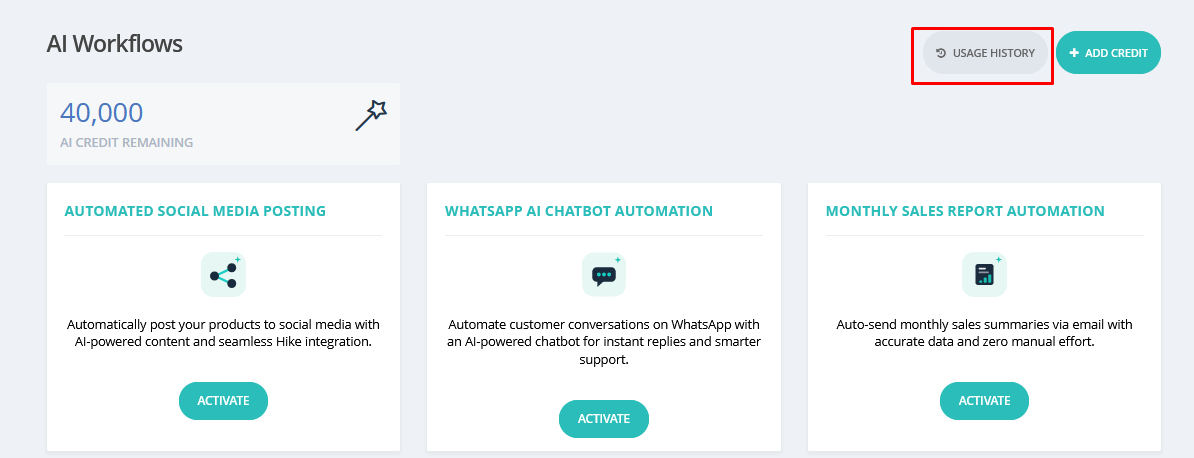
You can keep track of the AI credit used in each AI workflow under the AI credit usage history tab.
This tab will give you a list of all tasks performed and the credit used for each task performance.
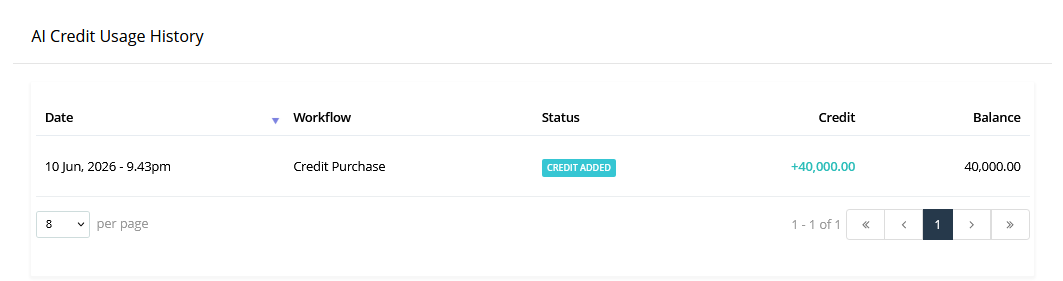
AI credit usage report.
Date: The date of the AI workflow and the credit used.
Workflow: Name of the workflow where the AI credit was used.
Status: Status of the credit. Credit added, credit used.
Credit: The credit amount used.
Balance: Available AI credit balance on your account.
You can keep track of the AI credit used in each AI workflow under the AI credit usage history tab.
This tab will give you a list of all tasks performed and the credit used for each task performance.
AI credit usage report.
Date: The date of the AI workflow and the credit used.
Workflow: Name of the workflow where the AI credit was used.
Status: Status of the credit. Credit added, credit used.
Credit: The credit amount used.
Balance: Available AI credit balance on your account.